
Our Hornets Basketball app is getting a new home
We are retiring our Hornets Basketball app, effective Sept. 3. Here is some information we hope will make the transition smoother.
I love the Hornets Basketball app. Why is it going away?
We’re retiring the Hornets Basketball so we can provide the best customer experience possible for Charlotte Hornets coverage. The same content you’ve enjoyed in this app is available on other platforms with a better user experience.
Will you still be covering the Hornets?
Absolutely! There are several ways you can still read our quality, in-depth sports coverage:
- Sign up for our newsletter and get coverage in your inbox
- Download The Charlotte Observer app for iPhone and iPad or Android
- Subscribe to Sports Pass
How do I access the new app, and where is the coverage located?
You might already have The Charlotte Observer news app. If not, you can download it on the app store. Please see instructions below on how to customize and find coverage within the app.
Do I have to pay for The Charlotte Observer app?
Downloading the app is free, and will give you access to the most free content — no subscription required. A subscription is required to read unlimited content.
How do I sign up for Charlotte Observer newsletters?
Signing up for our newsletters is free and easy. Just choose the newsletters you’d like to receive and enter your email address. That’s it!
What if I don’t want a subscription to The Charlotte Observer?
We would love to have you as a subscriber, but if you are not ready just yet there are several ways to stay connected.
- Sign up for our newsletters
- Follow us on Twitter and Facebook
What if I already have a subscription?
Thank you for supporting local journalism. Hornets coverage is included in your subscription. You can find coverage in The Charlotte Observer's app or on CharlotteObserver.com. If you haven’t already, you may want to sign up for one of our free newsletters.
I read all of my coverage on the Hornets Basketball app. How do I know if I have a subscription?
You will need a username and password to sign into our app and website. If you do not have one, you may not have a subscription. Please contact our customer service team and they will be happy to check your account status.
After I download The Charlotte Observer app, how can I find Charlotte Hornets coverage?
Coverage of the Hornets can be found under the Charlotte Hornets/NBA section in the The Charlotte Observer app.
If you have the iOS app, you can change the order of sections.
- Launch the app.
- Find and tap the “...” button in the top right corner of the screen. This will launch the app’s Settings screen.
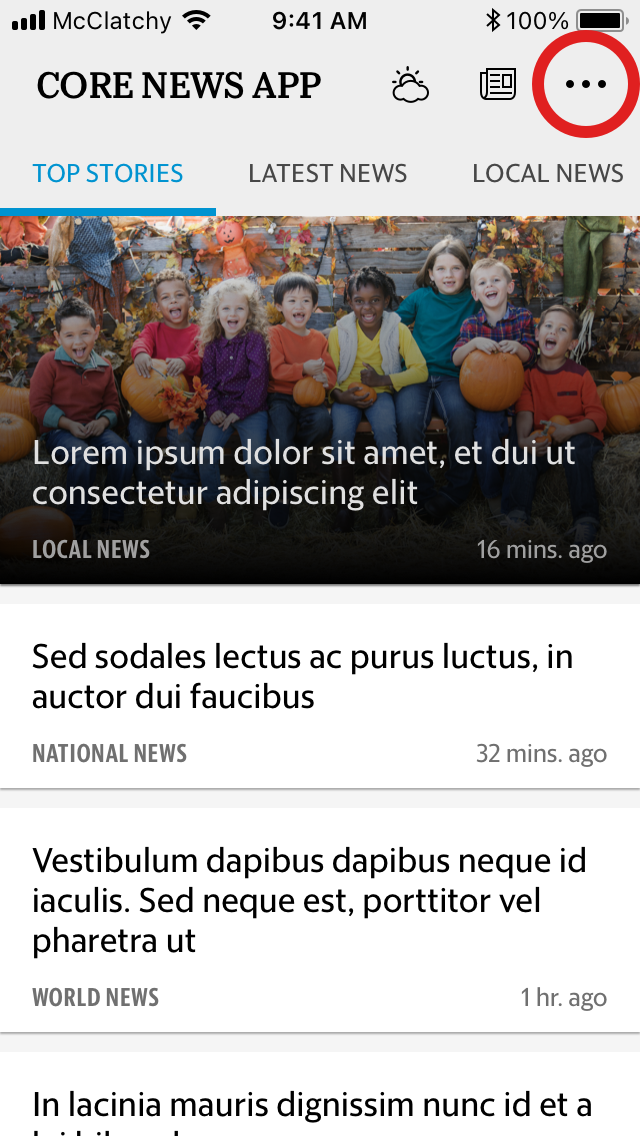
- On the Settings screen, under the “Personalization” heading, find and tap the button labeled “Edit Sections.”
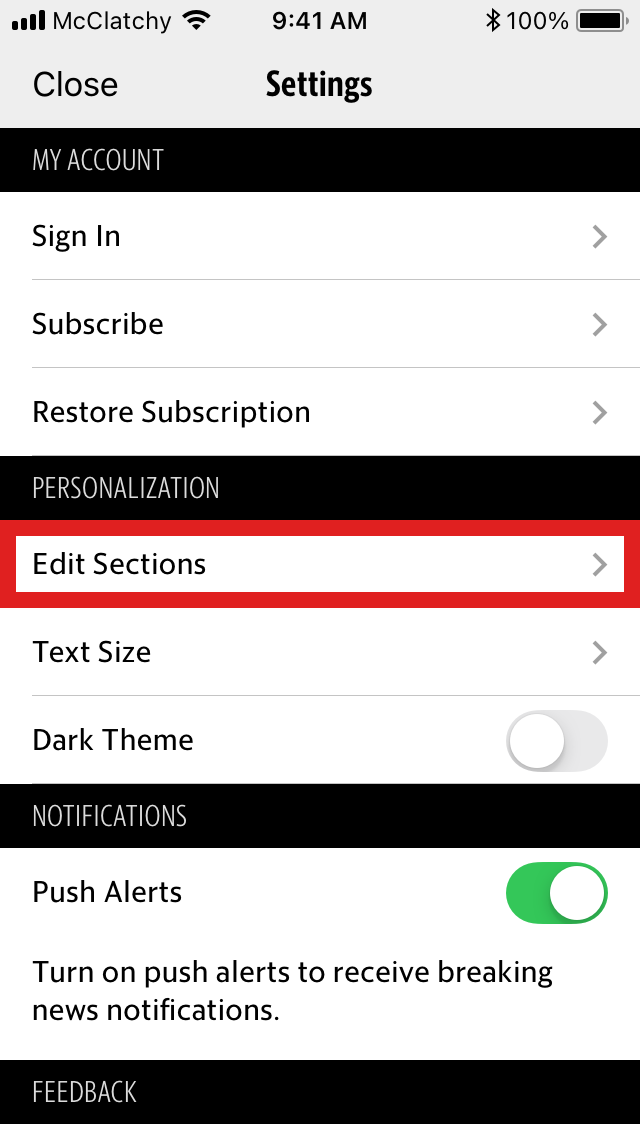
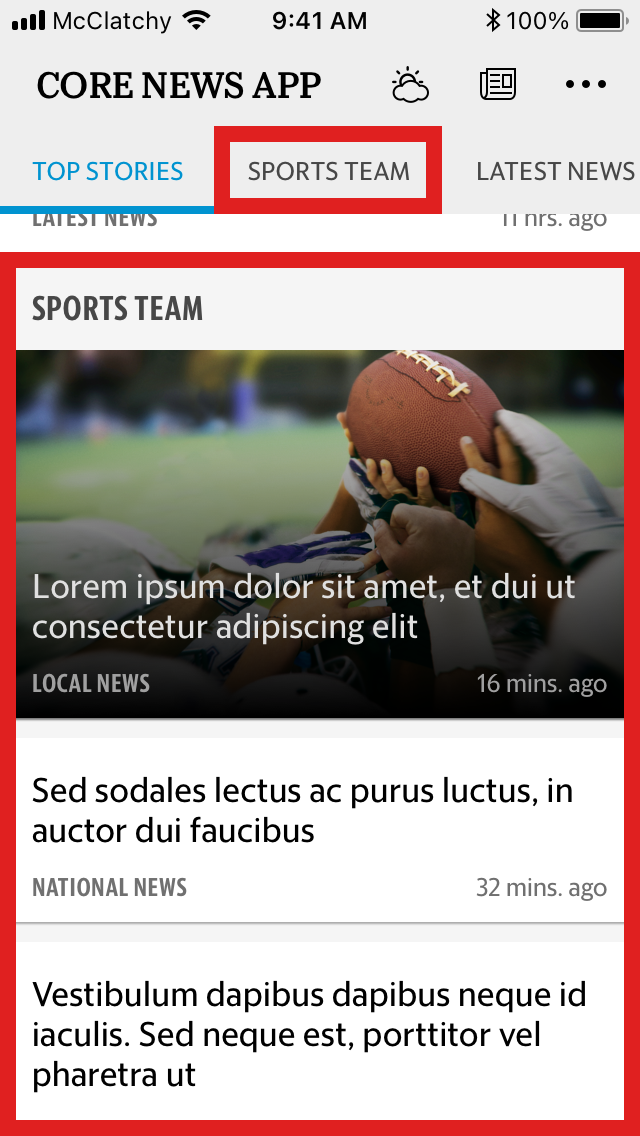
- On the Edit Sections screen, scroll to find your favorite sports team(s) from the section list.
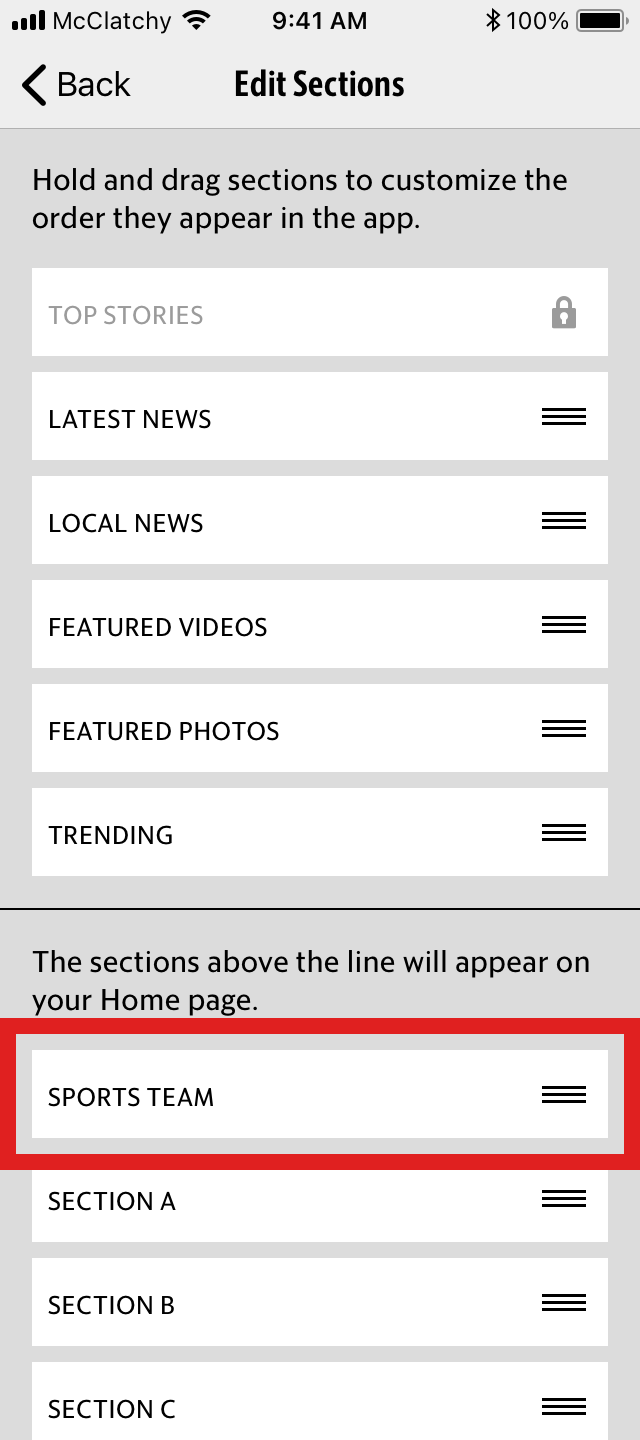
- To change the section order, tap and hold your desired section button, then drag it to your chosen spot. The order of the app sections will change automatically.
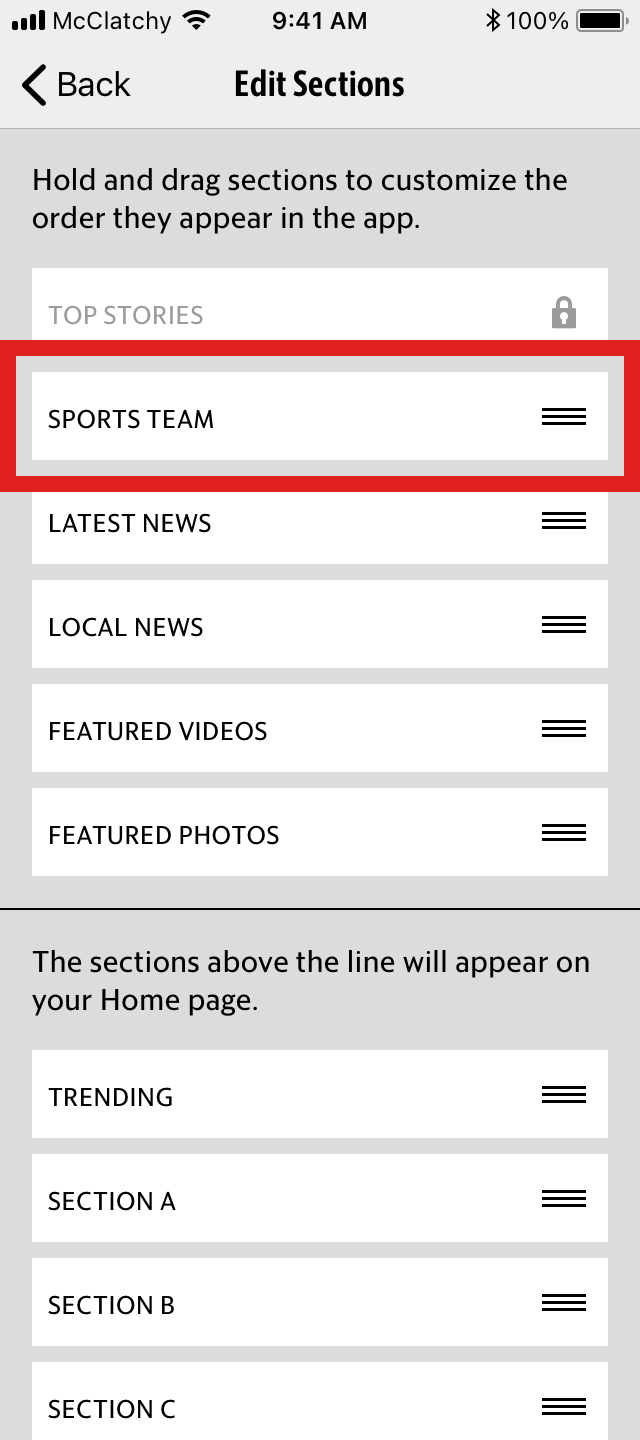
- In addition to changing the app’s section order, the Edit Sections screen also customizes the app’s home screen. The five top sections on the list are presented as subsections. (NOTE: The Top Stories section is locked and cannot be removed.)
How can I make sure to get push notifications?
On iOS:
- Launch the app.
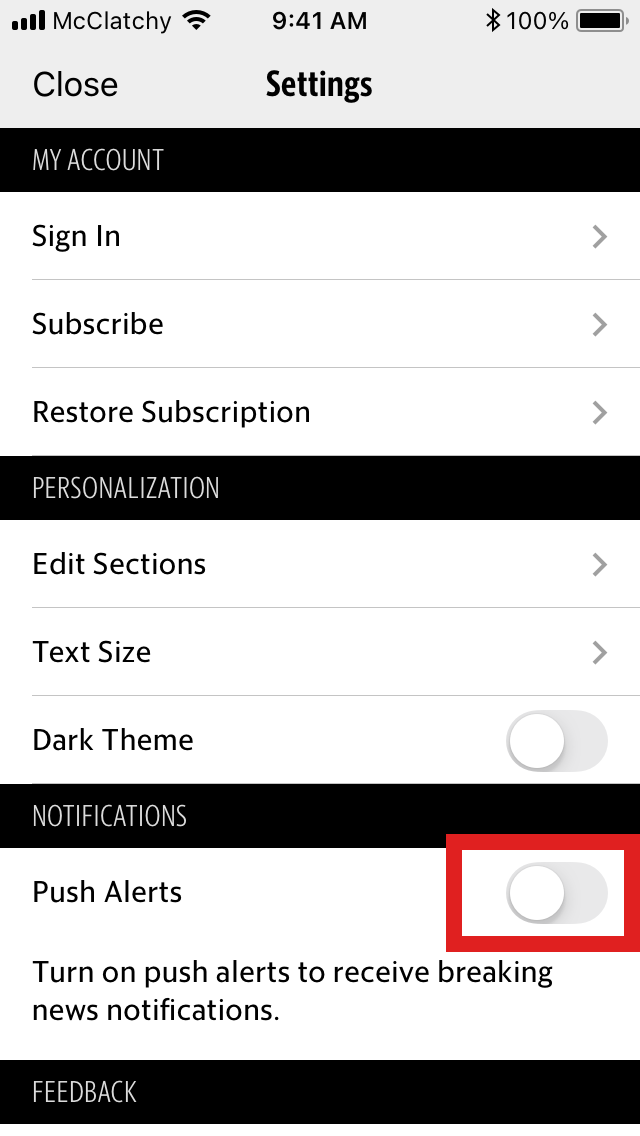
- Find and tap the “...” button in the top right corner of the screen. This will launch the app’s Settings screen.
- On the Settings screen, under the “Notifications” heading, locate the toggle button to the right of the label “Push Alerts.” If the toggle button background is grey, push alerts are turned off. Tap the toggle to turn them on. The toggle background will turn green.
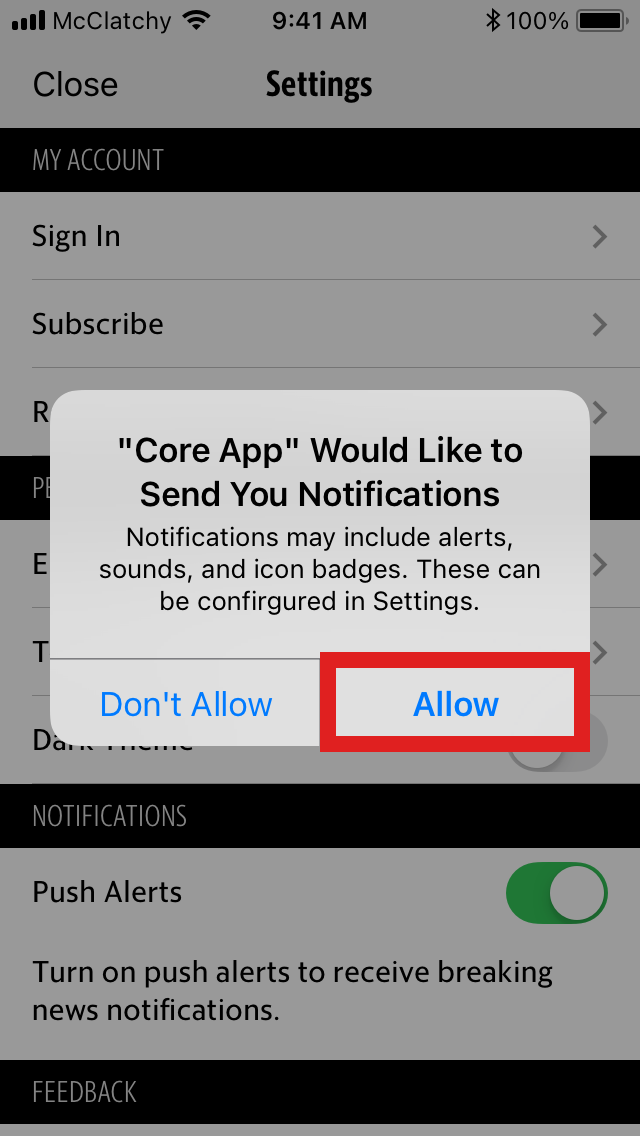
- An alert will then appear on the screen asking you to allow the app to send you notifications. Tap “Allow.”
On Android:
On Android, push notifications are enabled by default. To verify:
- Launch the app.
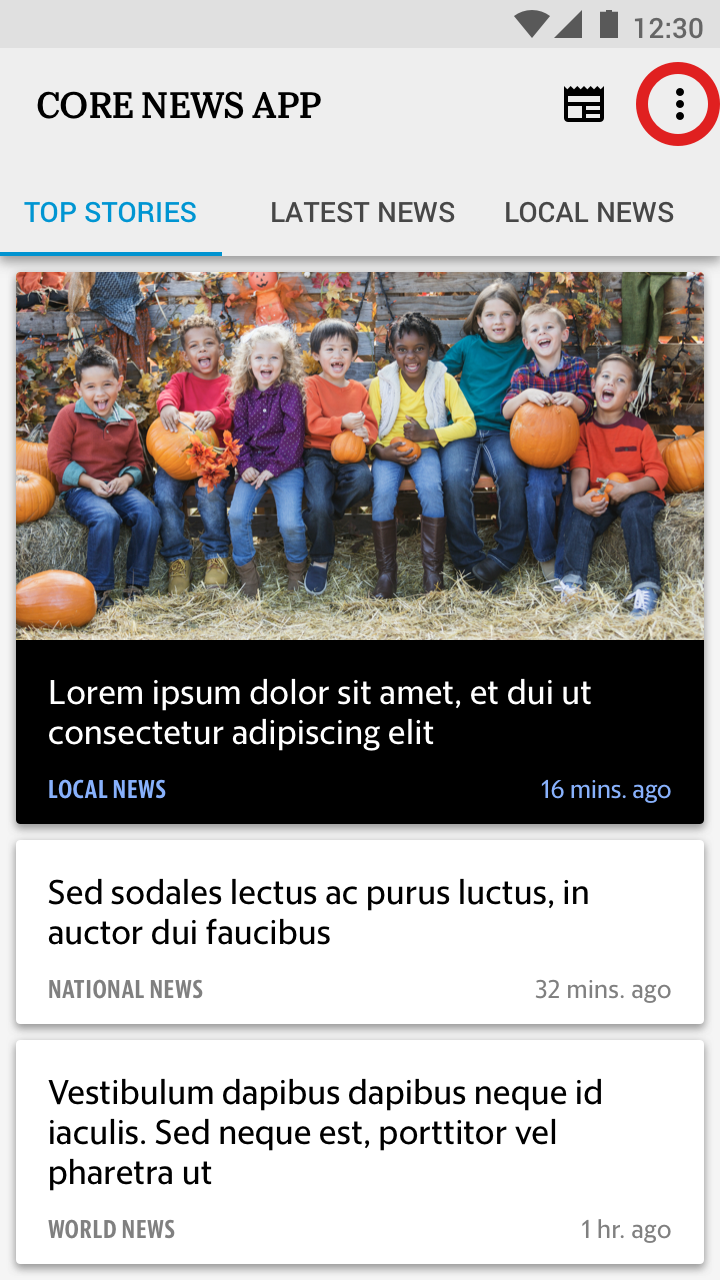
- Find and tap the vertical “...” button in the top right corner of the screen. A button labeled “Settings” will appear. Tap it to launch the app’s Settings screen.
- On the Settings screen, under the “Notifications” heading, locate the toggle button next to the label “Push Alerts.” If the toggle button background is grey, push alerts are turned off. However, if the button background is teal, then notifications are on and enabled.
If you need further help, please visit this page to contact customer service.