How to turn off social media autoplay to avoid graphic, violent videos
AI-generated summary reviewed by our newsroom.
- Social media platforms allow users to manually disable video autoplay settings.
- Disabling autoplay requires navigating distinct menus across apps and devices.
- Users can protect viewing experience by adjusting media and playback preferences.
It’s possible to accidentally watch some graphic videos on social media sites. Because autoplay is turned on by default on social media sites like X, Facebook and Bluesky, many users could see videos they didn’t intend to watch without the chance to skip them first.
Watching violent, disturbing videos has been shown to negatively impact mental health, according to The Jed Foundation, an organization that provides resources to protect emotional health.
Here’s how you can turn off autoplay and regain control of your feed.
How to turn off autoplay on X (formerly Twitter)
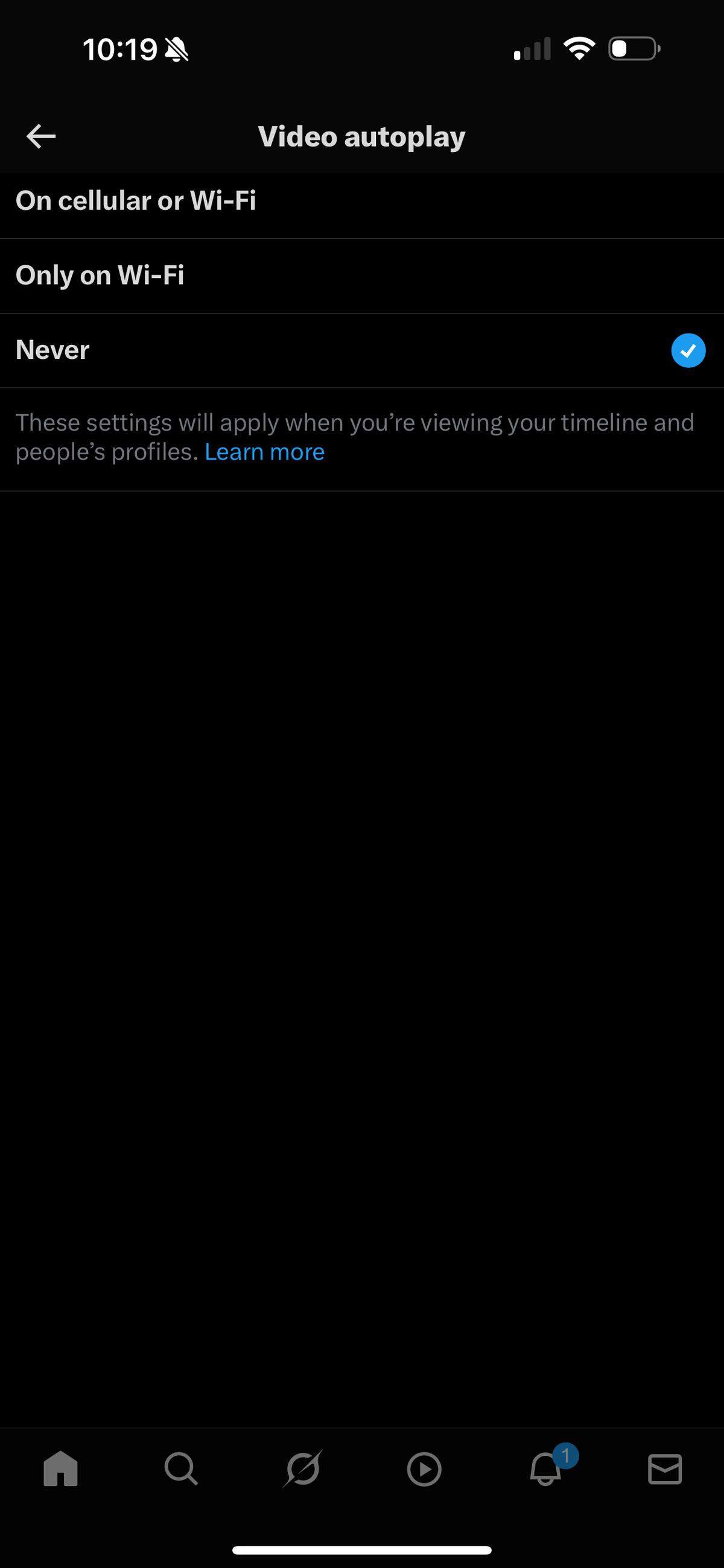
Here’s how to disable autoplay on X:
Click the “More” button (three dots) in the left-hand menu.
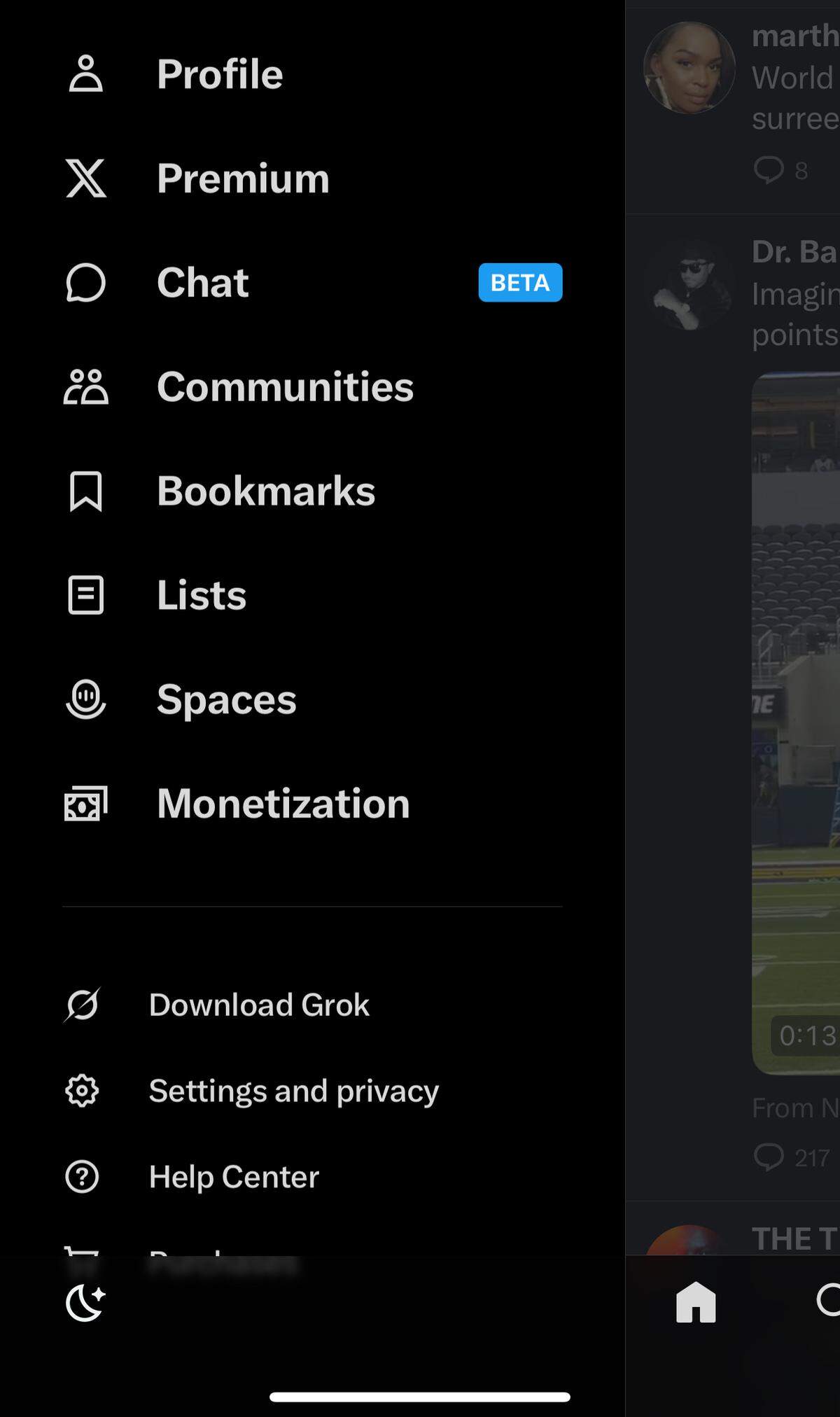
Select “Settings and privacy.”
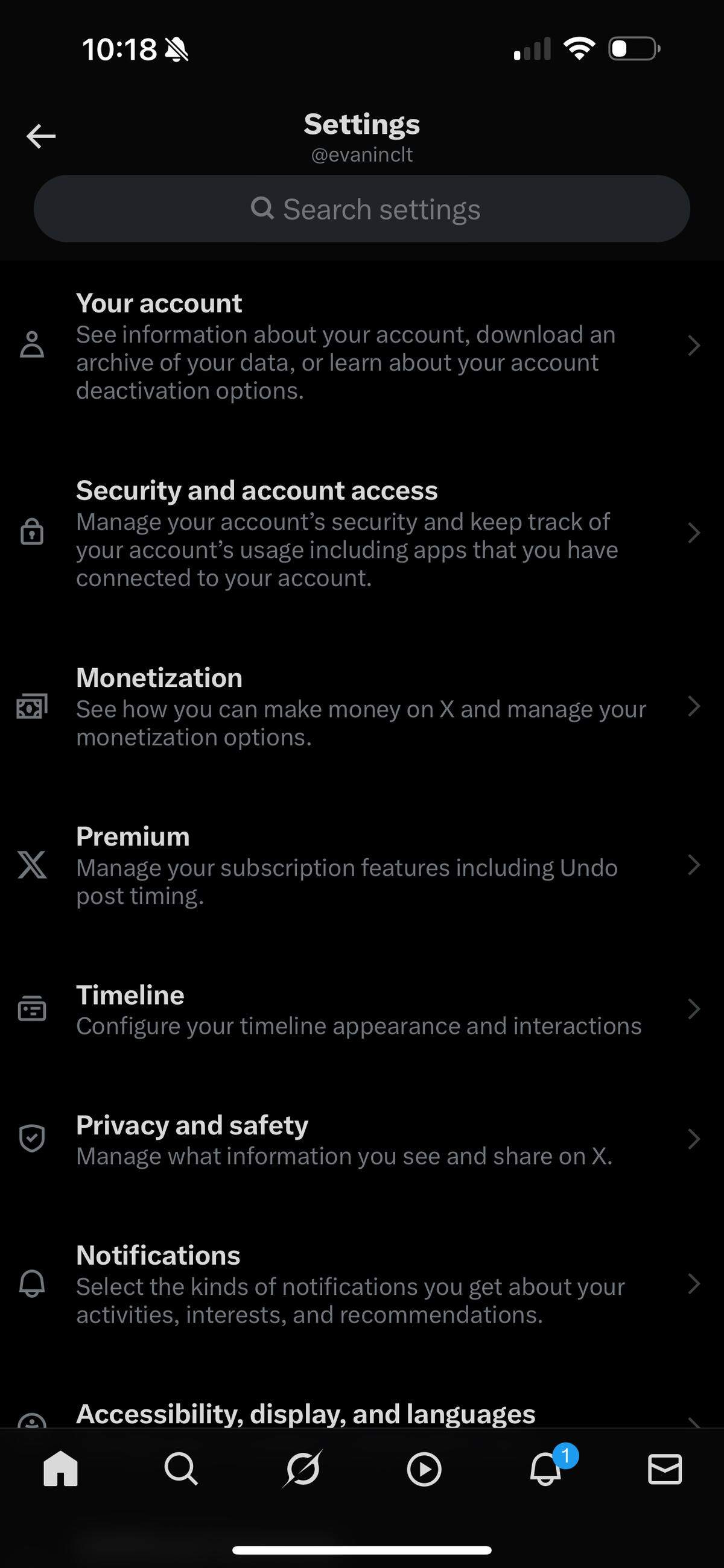
Go to “Accessibility, display, and languages.”
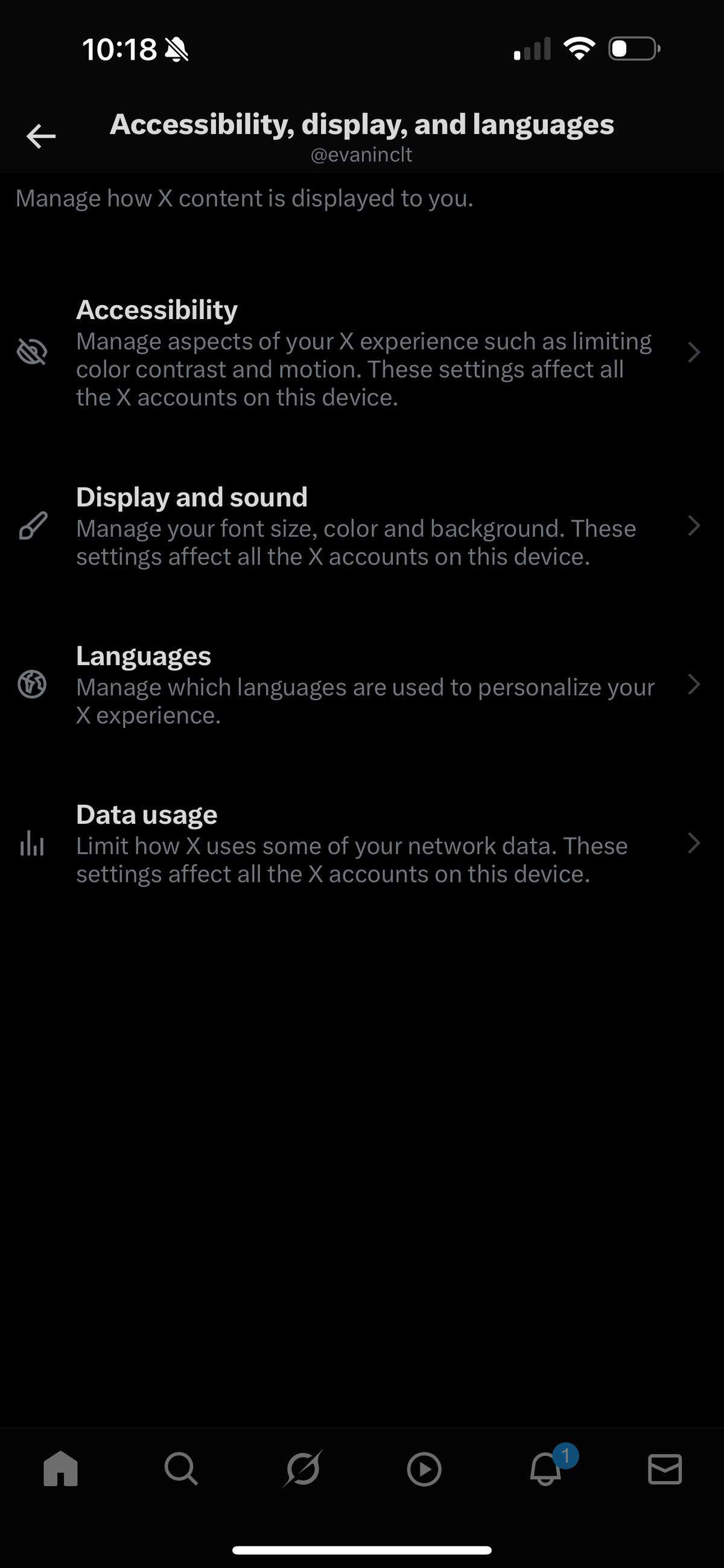
Click on “Data usage.”
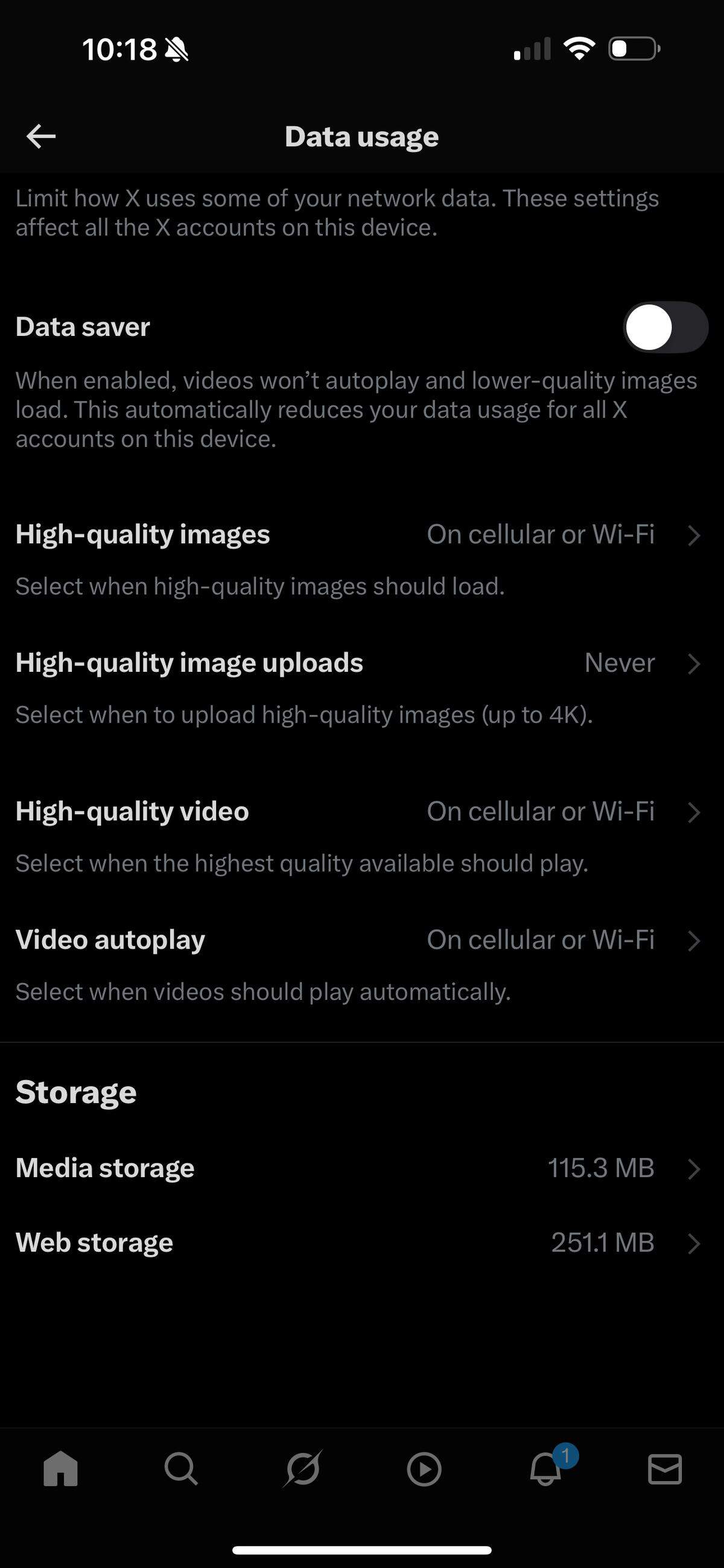
Find the “Autoplay” section and choose “Never.”
How to turn off autoplay on Facebook
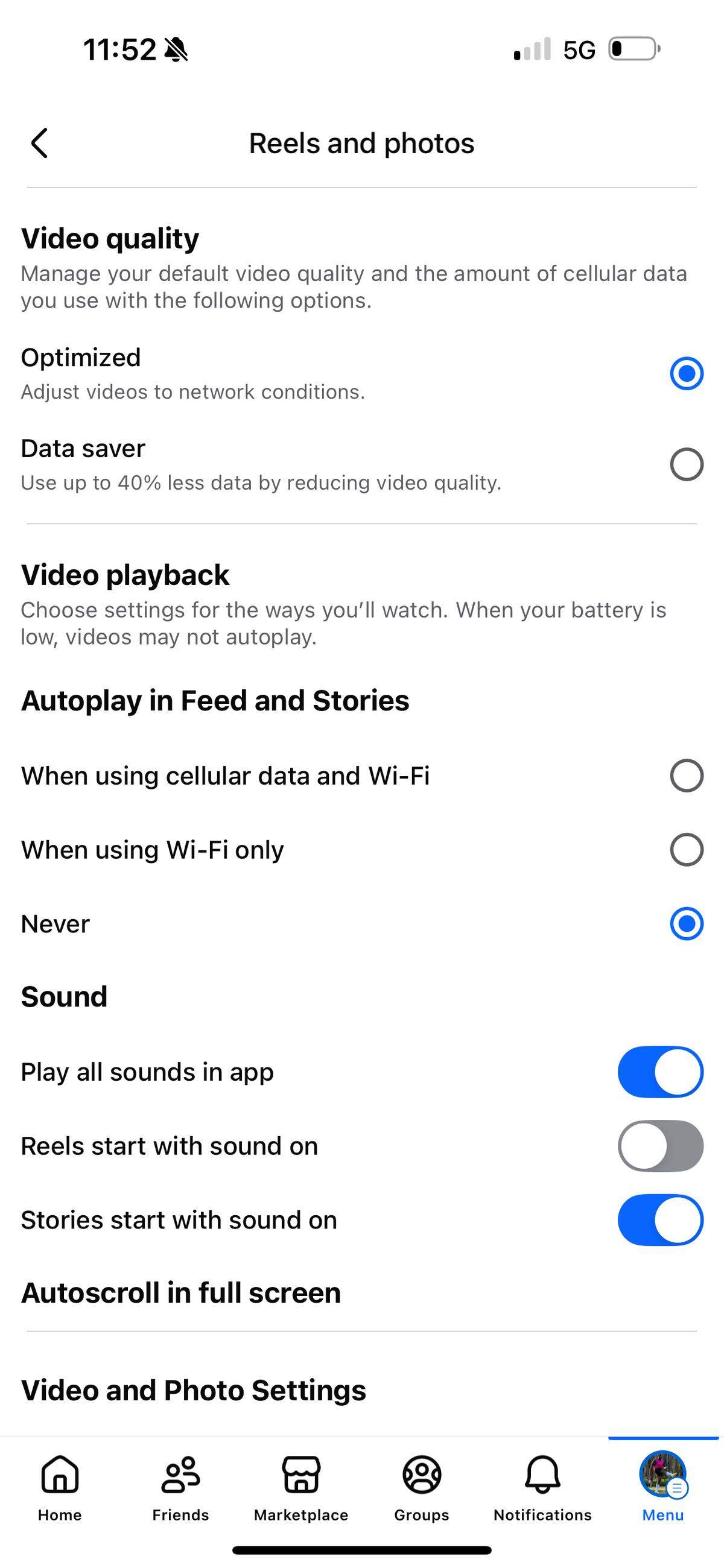
Here’s how to disable autoplay in the Facebook app:
Tap the Menu icon (bottom right-hand corner with your profile picture).
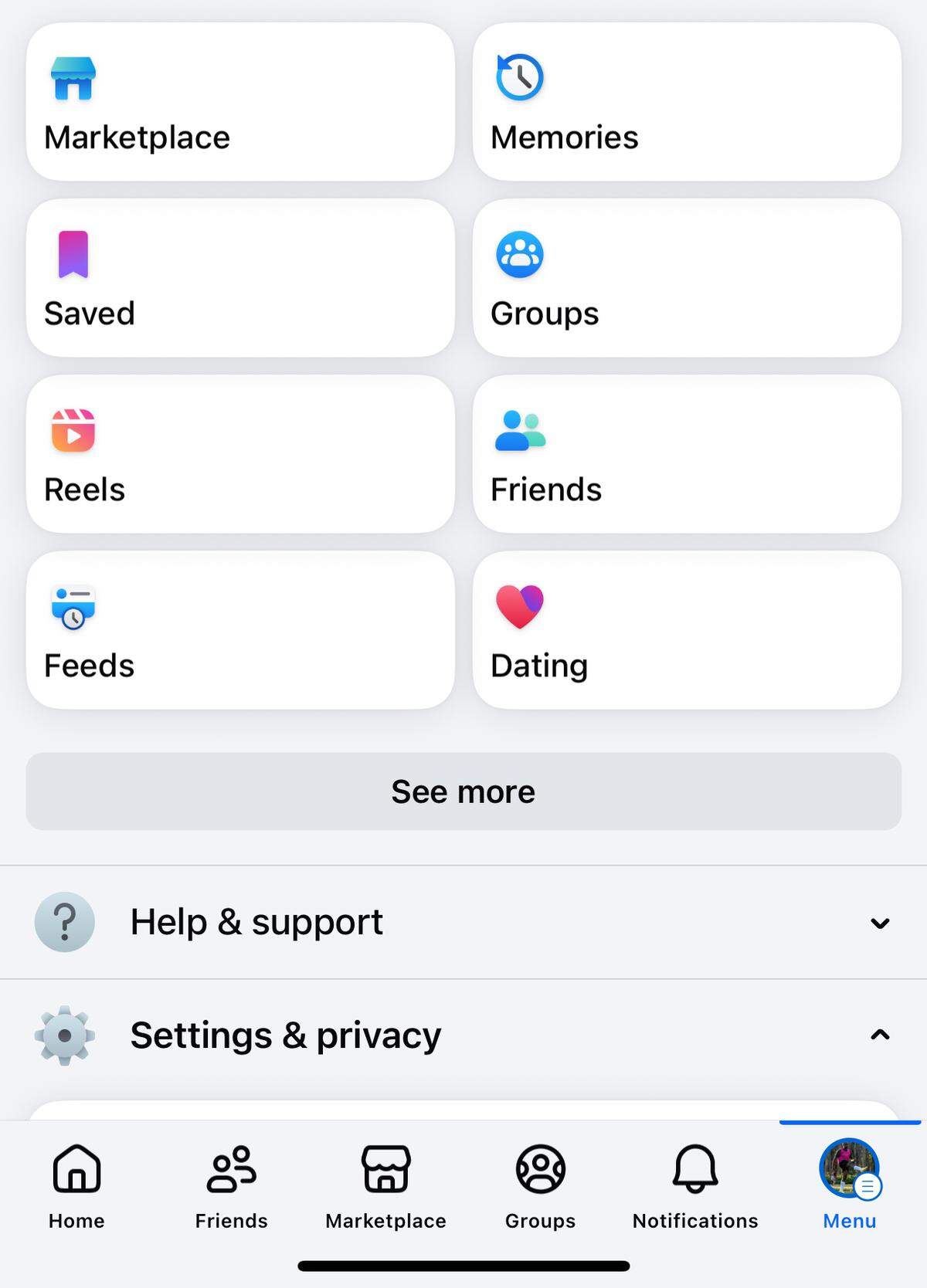
Scroll down and select “Settings & privacy.”
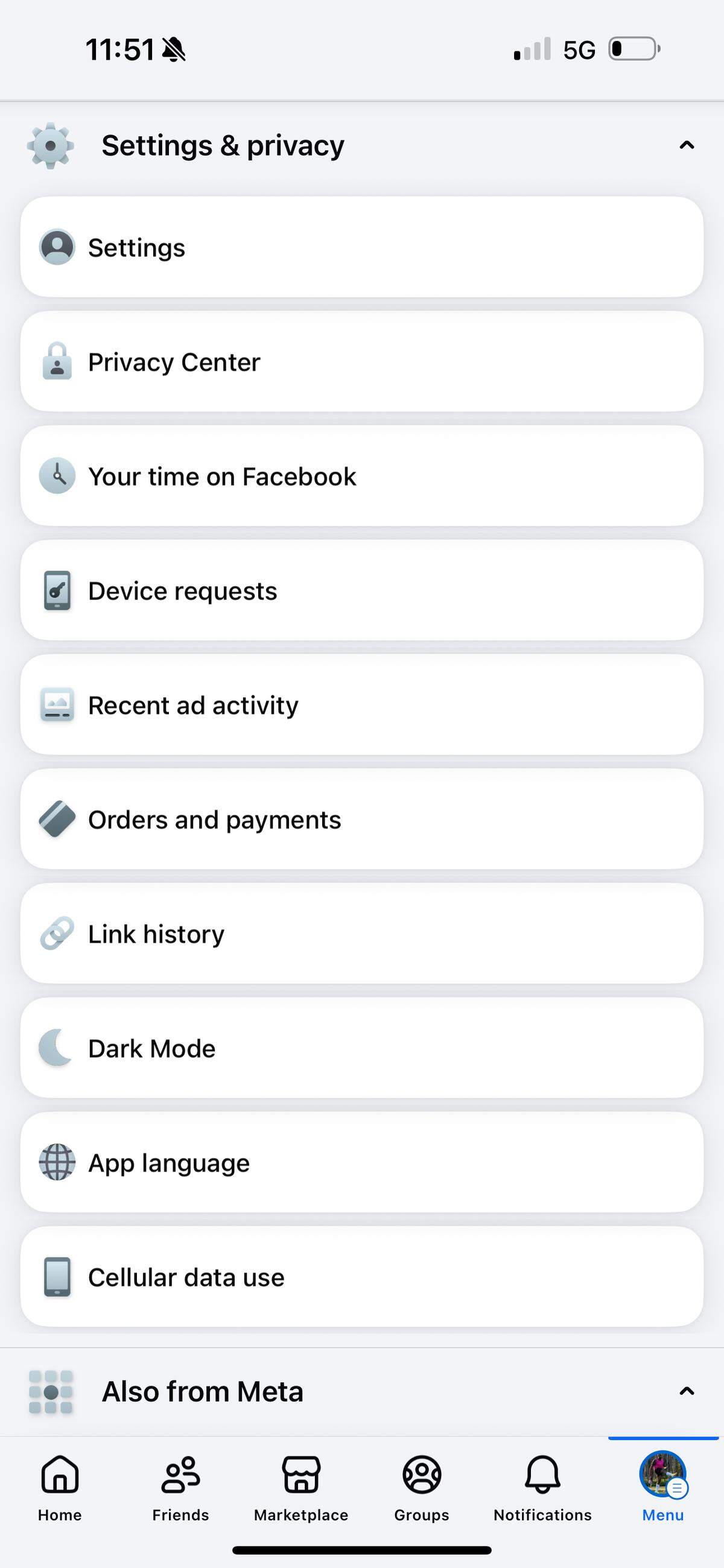
Tap “Settings.”
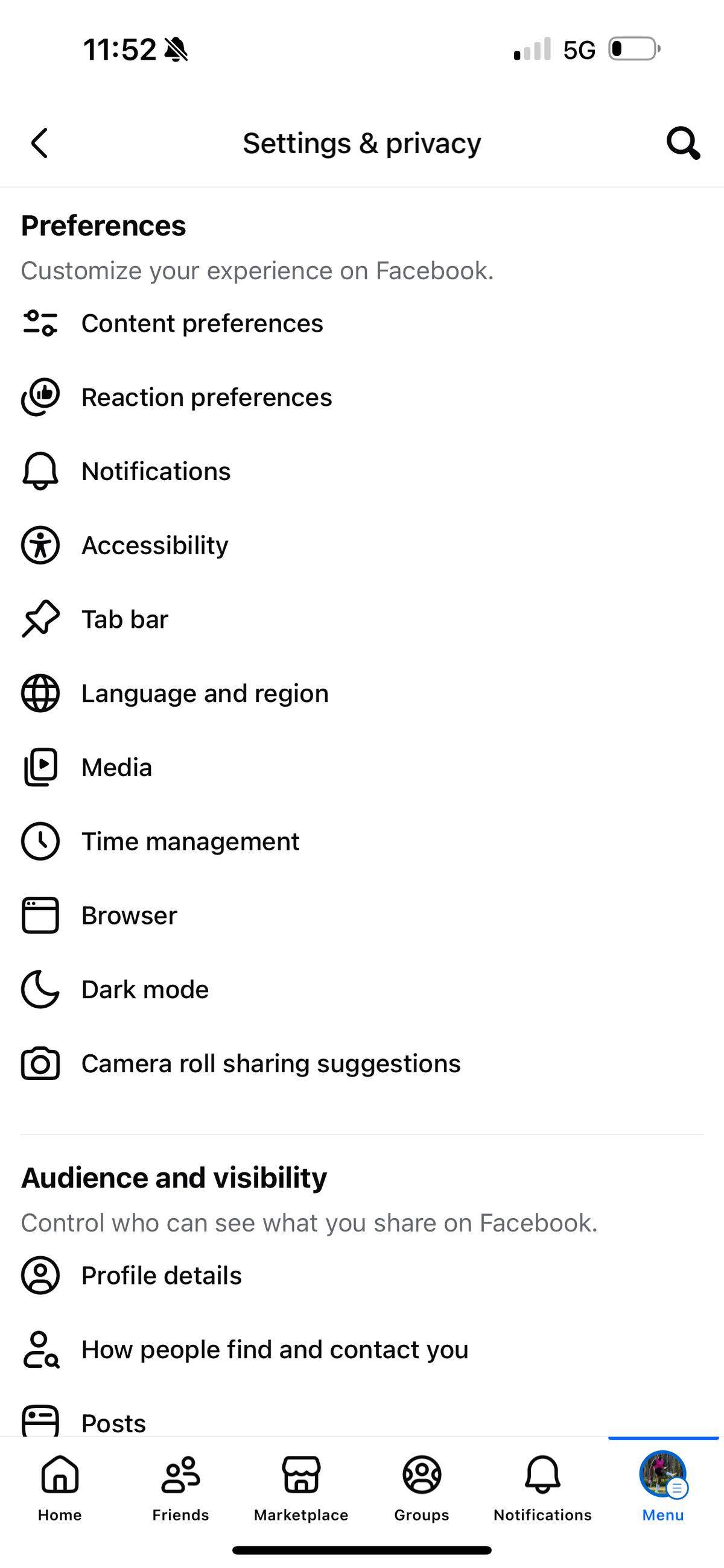
Under Preferences, select “Media,” then select “Never Autoplay Videos.”
How to turn off autoplay on YouTube
Here’s how to disable autoplay in the YouTube app:
Open “Settings.”
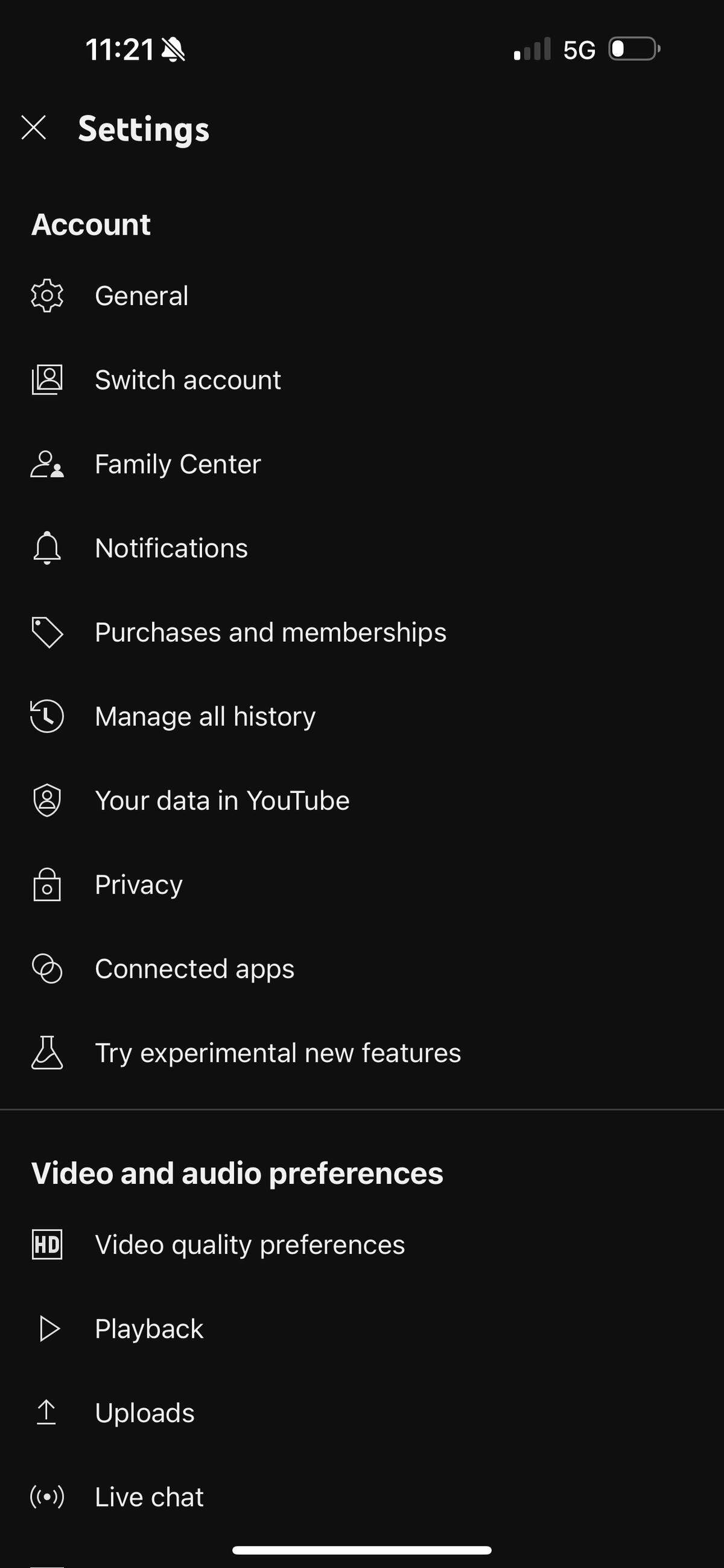
Tap “Playback.”
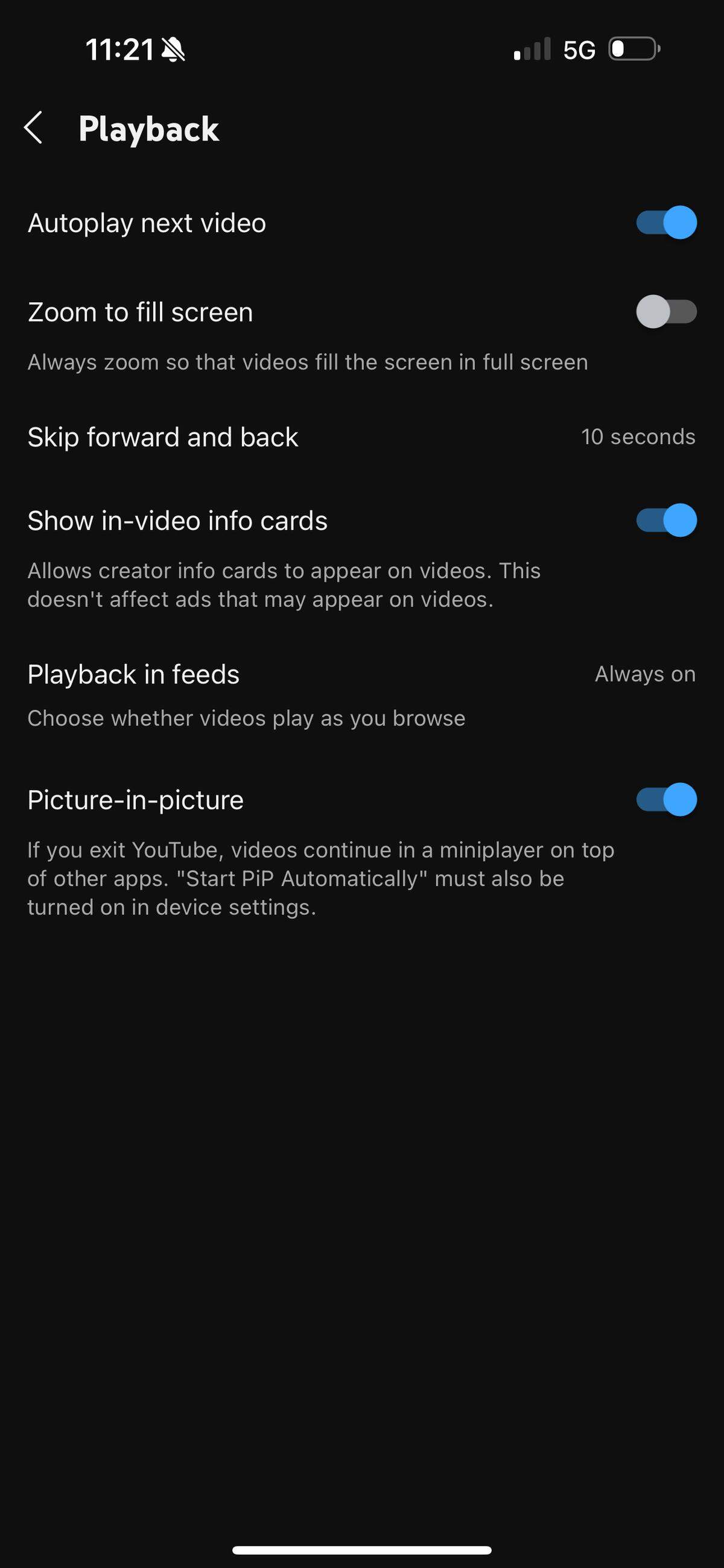
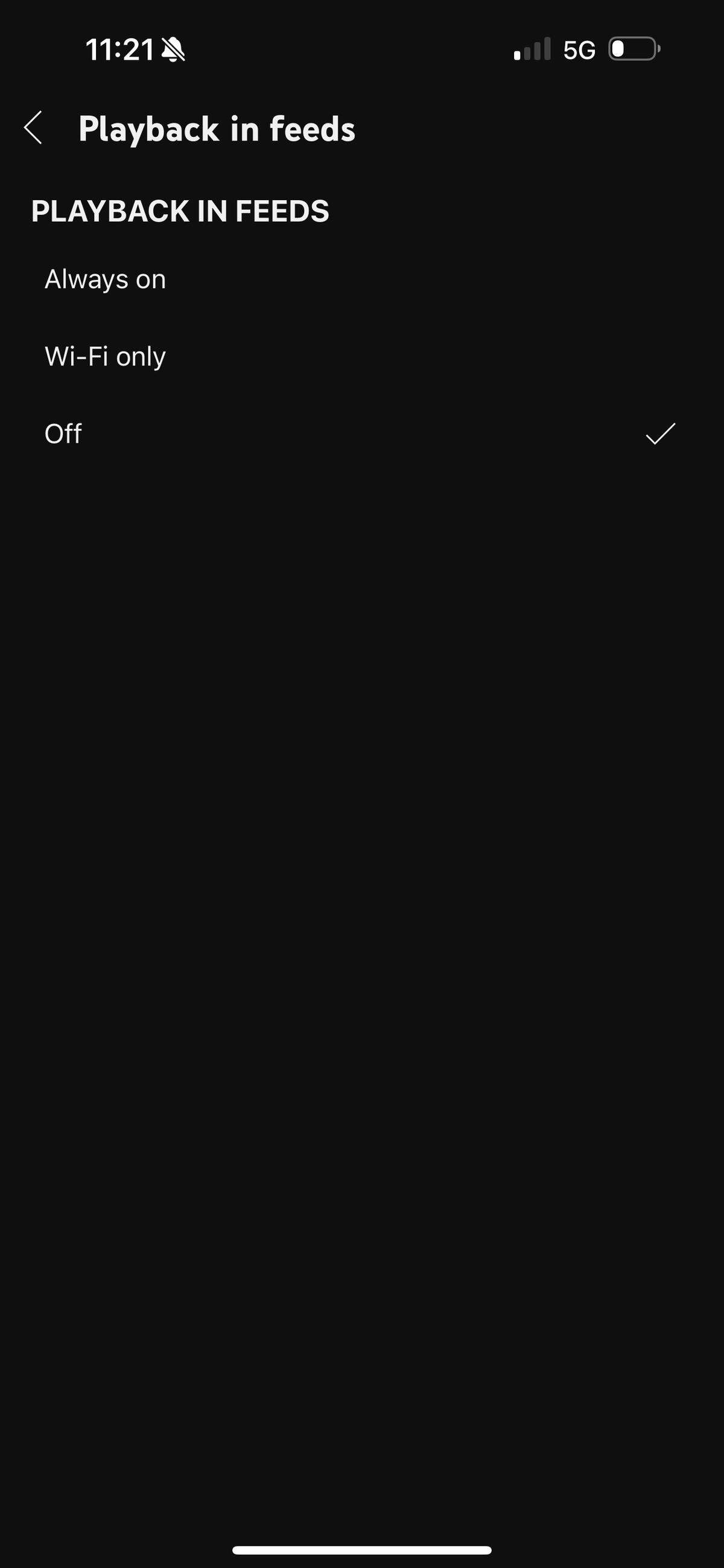
Select “Playback in feeds,” then choose “Off” to disable autoplay.
How to turn off autoplay on Bluesky
Here’s how to disable autoplay on Bluesky:
Open “Settings.”
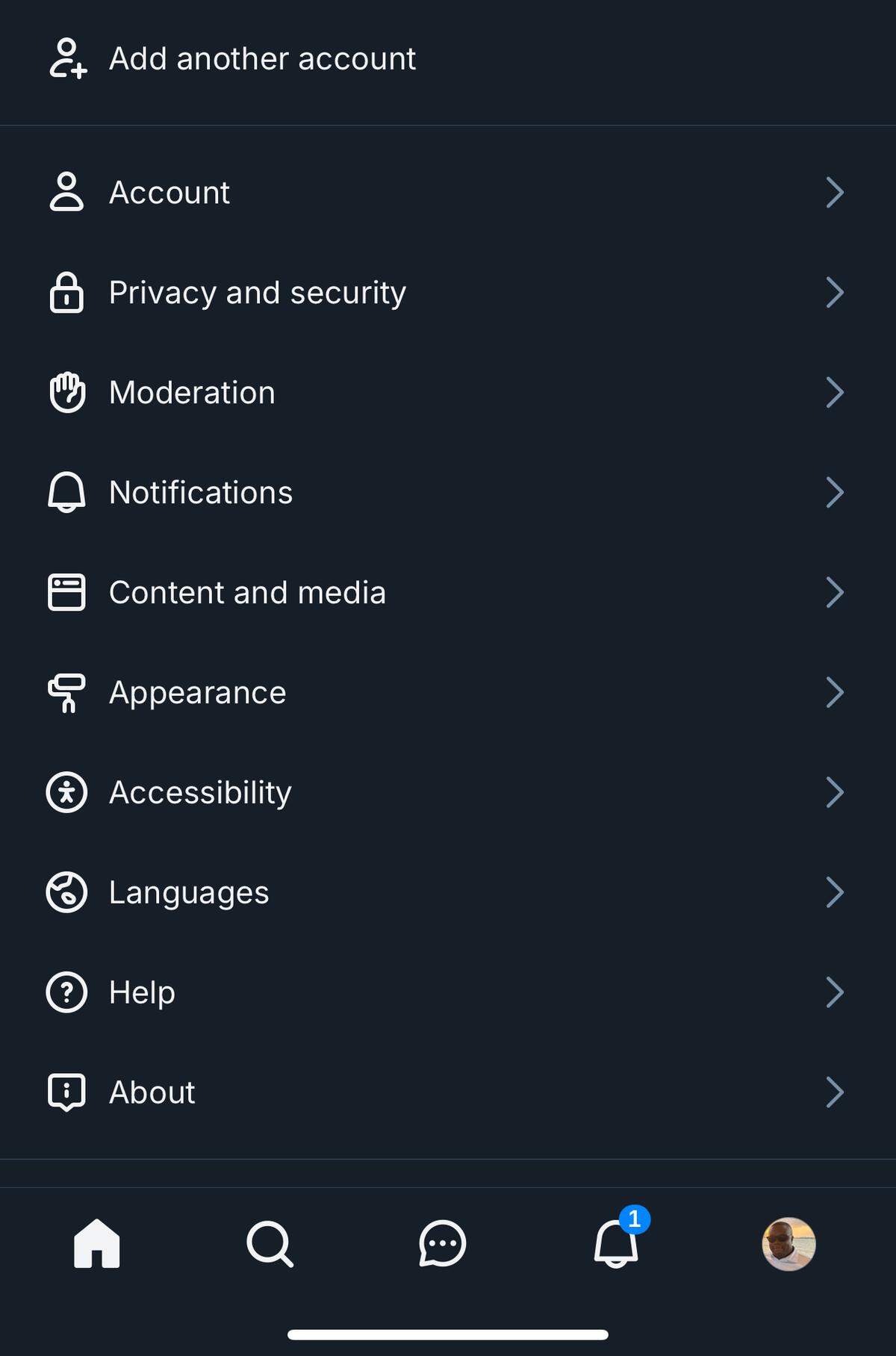
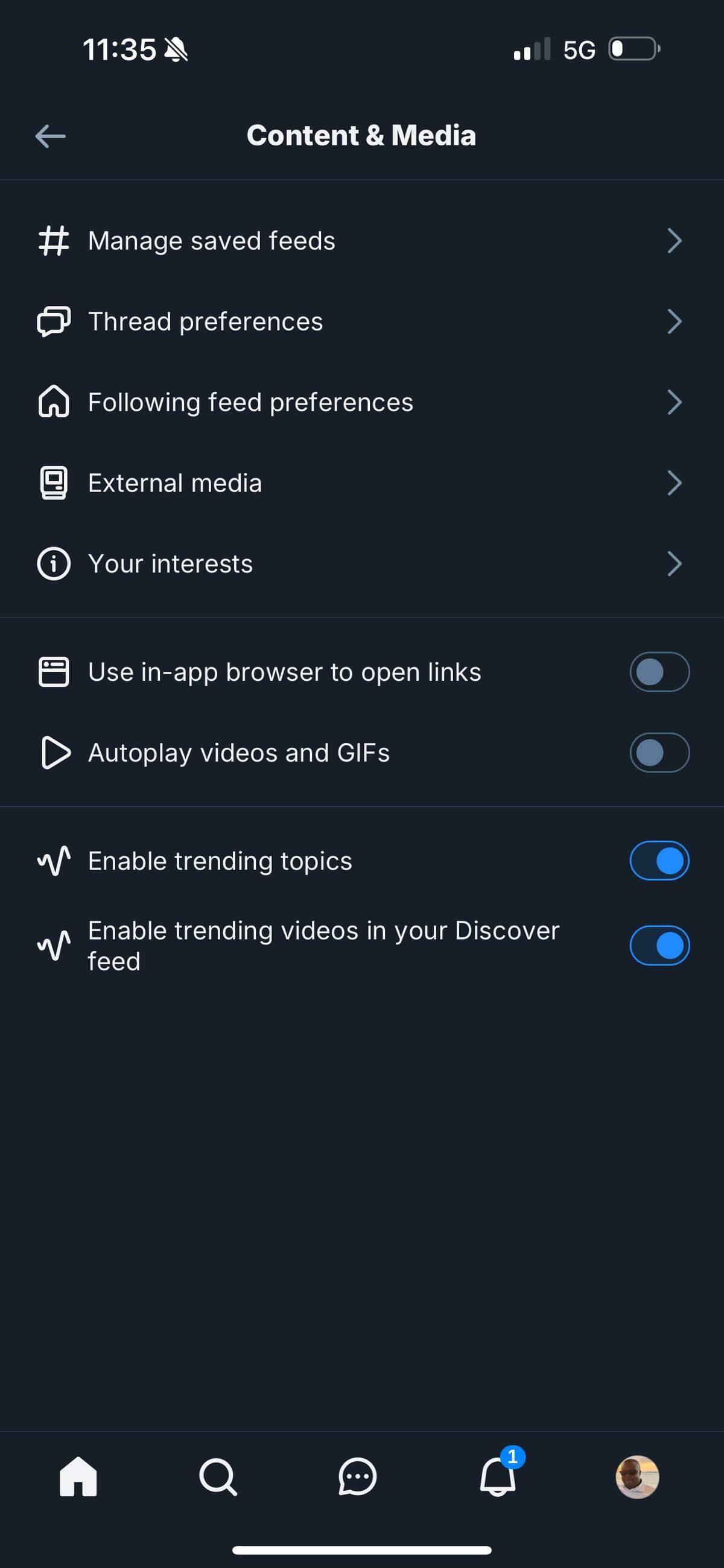
Select “Content & Media.” and uncheck the box labeled “Autoplay videos and GIFs.”
This story was originally published September 11, 2025 at 1:26 PM.